Manuals, software and settings
Everything needed to set up and run your machine: the user manual, the right device profile, material presets and the certificates for your market.
Files are issued against your model and serial number so the profile matches the build.
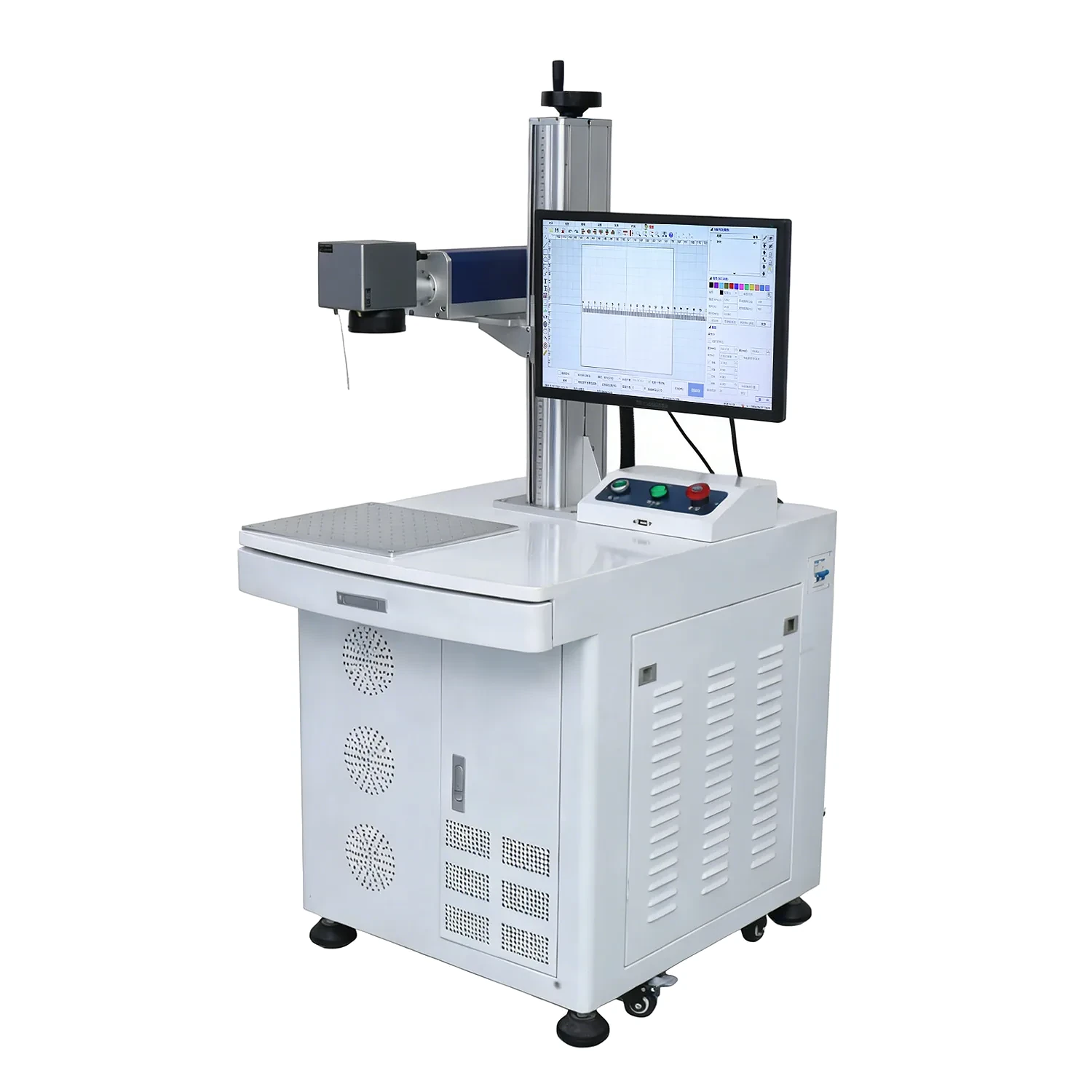 Desktop fiber laser, ready for setup
User manuals
Assembly, first-run checks, software setup, maintenance intervals and safety notes for each series.
Profiles, drivers and presets
Load the profile for your model before the first mark. It sets the lens, marking field and safe starting parameters.
Start from a known-good recipe
The material library lists power, speed and frequency for the materials we test most often. Use it as a starting point, then confirm on your own part.
- Fiber presets for stainless steel, aluminium, brass and coated metal.
- CO₂ presets for wood, acrylic, leather, glass and coated board.
- UV presets for plastics, glass and heat-sensitive surfaces.
Certificates & export documents
Certificates are issued per model and market. Send your model and destination country and we will confirm what applies.
CO₂ machines run LightBurn, while fiber machines run EzCad. Keep your software, drivers and profiles together so a new computer or a factory reset does not slow you down.
What you can download
- Machine manuals and quick-start guides
- Software and drivers
- Material settings profiles
- CE and compliance documents
If a file is missing, contact the support center and we will send it. For software background, see the laser engraving overview.
Keep software and profiles together
Store your LightBurn or EzCad installer, the USB driver and your material profiles in one place. If you replace a computer or reset a machine, having these files together avoids a slow restart and a support ticket.
We update profiles when we refine settings, so check back before starting a new material.
What ships with your machine
Each machine ships with a manual, a configuration file, the software installer and video tutorials. Keep these together with your licence details and the USB driver, so a new computer or a reset does not interrupt production. If any file is missing, contact support and we will send it.
Browse the material settings and FAQ pages for related help.
Check the downloads page before starting a new material or moving to a new computer, and keep your profiles and licence details backed up. We add updated files as we refine settings and certification documents, so a quick check here can save a support ticket later.
Keep these files organised from day one, and setup stays fast whether you are installing one machine or several.
If you cannot find the manual for your model, send the machine serial number and the control software version. We keep older laser machine manuals and parameter files on file and can send the matching document directly.
Send your model and serial number
We will send the matching manual, profile and certificate pack, plus a walkthrough if the setup is new to you.